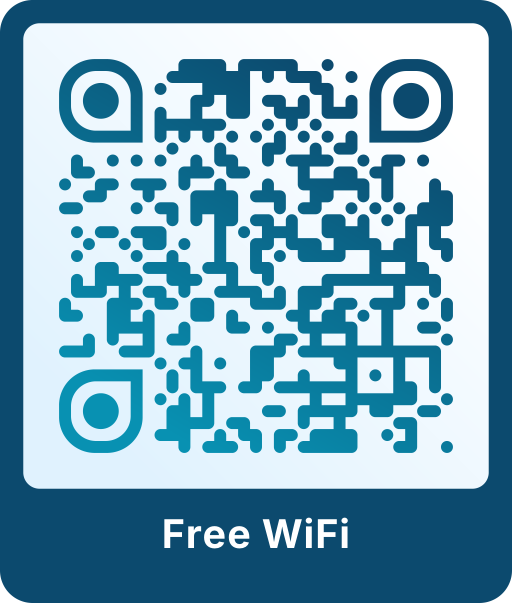
How a WiFi QR code works
The code contains your network name, the password and the encryption type in a standard format that phones understand. The camera app shows a notice such as “Join network” and connects with one tap.
The iPhone camera has read Wi-Fi codes since iOS 11, and current Android phones do the same in the camera app or with Google Lens. No extra app is needed.
Which encryption should I choose?
- WPA: the right choice for almost all home and business networks today, including WPA2 and mixed WPA2/WPA3 networks.
- WEP: only for very old routers. WEP is considered insecure.
- No password: for open networks, for example a public guest network.
Network name and password are case sensitive. Copy them from the router label or the router settings to avoid typos.
Where a WiFi QR code is useful
- Cafés, restaurants and hotels: on table stands, at the counter or on the key card holder.
- Holiday apartments: in the welcome folder or framed next to the door.
- Offices and coworking spaces: in meeting rooms for visitors.
- At home: on the fridge, so friends and family no longer have to ask.
Security
Anyone who scans the code can join your network, just as if you told them the password. Use a separate guest network for visitors if your router supports it. When you change the password, create a new code, because the old password is stored in the code itself.
Scanoli creates the code in your browser. Your network name and password are not sent to our servers. For cafés and restaurants, a WiFi code goes well with a menu QR code on the same table stand.